

The Virtual Assistant Tools I Actually Use to Run My Business

Virtual Assistant tools can make client work easier. They can also become a very respectable-looking form of procrastination.
You download half the internet, color-code three calendars and sign up for six project-management platforms because everyone online swears by a different one. A week later, you have more logins than clients and no idea where you put Tuesday’s task list.
The best Virtual Assistant tools support work you already understand. They help you stay organized, protect client information, communicate clearly and deliver better results. They do not replace a workable process, professional judgment or the ability to finish what you started.
These are the Virtual Assistant tools I currently use in my own business for client work, content creation, project management, email marketing and AI. I am not suggesting that every VA needs every platform on this list. You probably do not.
What you need depends on the services you offer, the clients you support and the way your brain works.
Before You Build a Giant Tech Stack
Choose the problem before you choose the platform.
If client tasks are slipping through the cracks, you may need a project-management system. If onboarding takes twelve separate emails, a client-management platform could help. If you only want a new app because someone posted a pretty dashboard on Instagram, close the tab and back away slowly.
I keep a tool when it does at least one of these things:
- Replaces repetitive manual work
- Keeps important information from getting lost
- Makes collaboration easier for me or the client
- Protects client information
- Helps me deliver a better result
- Saves enough time or frustration to justify its cost
The right tech stack is not the biggest one. It is the smallest collection of tools that reliably supports your work.
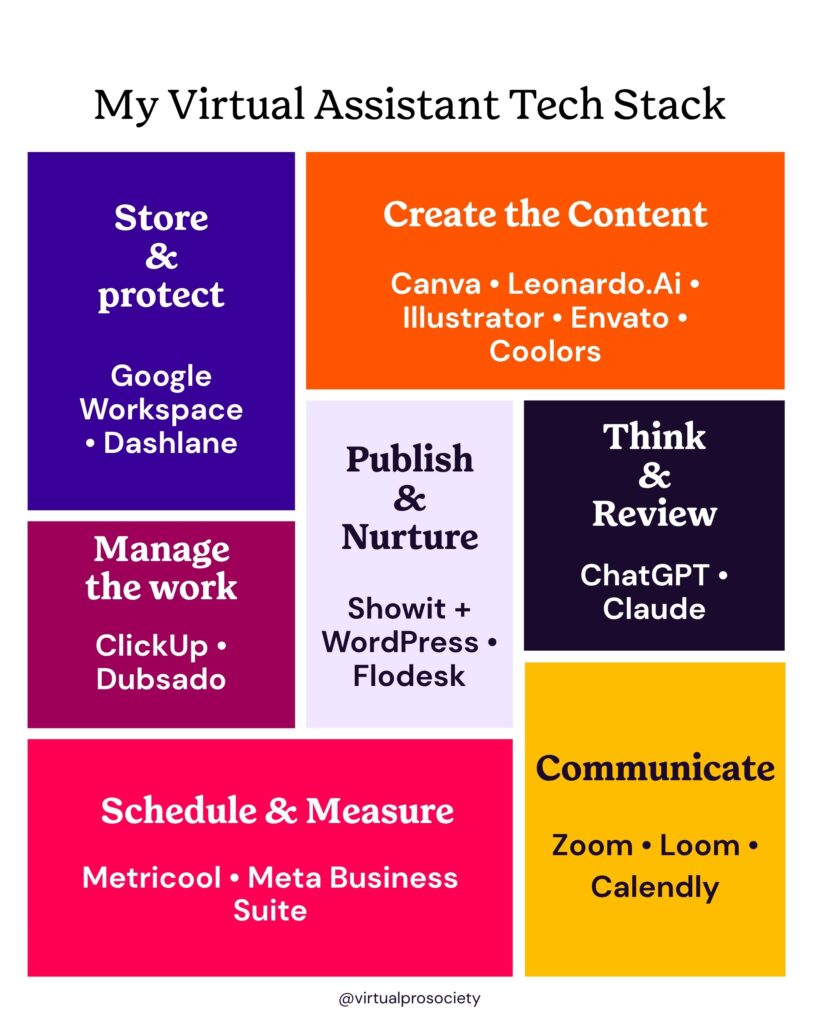
Project and Workflow Management
ClickUp
ClickUp is where I organize the work that keeps my business moving. I use it to manage projects, deadlines, recurring tasks, content plans and the moving pieces that would otherwise be scattered across my brain, several notebooks and at least one mystery sticky note.
ClickUp can connect tasks with documents, dashboards, comments and automations. I use the parts that make the work easier to see and repeat instead of disappearing into a systems rabbit hole.
It is also important to understand what ClickUp does not do in my workflow. I may plan and track social content inside ClickUp, but I use Metricool or Meta Business Suite to schedule and publish it. ClickUp manages the process. The scheduling platform handles the post.
For an ADHD brain, seeing projects in different views can be incredibly useful. The trick is building a structure that helps you make decisions instead of a digital storage unit where tasks gather dust.
Client Management and Scheduling
Dubsado
Dubsado handles the client-facing side of my business. I use it for inquiry forms, proposals, contracts, invoices, questionnaires and onboarding workflows.
That distinction matters. ClickUp manages the work after it enters my business. Dubsado manages the path a lead or client takes through the business.
A repeatable workflow helps me avoid rebuilding the process every time someone hires me. It also gives the client a clear, professional experience without requiring me to remember fifteen separate steps while also trying to do the actual work.
Start with the basic journey your client takes from inquiry to signed contract and payment. Automate only after the manual process makes sense.
Calendly
Calendly removes the email tennis match involved in finding a meeting time. I use it to share my real availability, collect basic information before a call and keep appointments connected to my calendar.
It is simple, but that is precisely why it earns a place in my stack. A tool does not need seventeen dashboards and a marching band to be useful. Sometimes its whole job is preventing six messages that say, “Does Thursday at two work?”
Content Creation and Visual Design
Canva
Canva is where I create most of my day-to-day visual content. That includes social graphics, carousels, presentations, lead magnets, workbooks, reel covers and client templates.
Folders, reusable templates and Brand Kits help me keep client assets separated and reduce the amount of design work that has to begin from a blank page. Features such as resizing and background removal also save time when one piece of content needs to work in several places.
Templates do not automatically produce good design. You still need to understand hierarchy, spacing, contrast and the client’s brand. Otherwise, you are simply making the wrong thing faster.
Leonardo.Ai
I use Leonardo.Ai for AI-generated images, visual concepts and short video assets. Leonardo.Ai is also connected with Canva, and its technology powers Canva’s Dream Lab image-generation feature.
It is especially useful when a project needs a visual that would be difficult to find in ordinary stock photography. I can create a starting point that fits a specific scene, color palette or idea instead of settling for the same woman-pointing-at-a-laptop image that has already toured the entire internet.
AI-generated visuals still require judgment. I check hands, text, logos, background details, brand consistency and usage rights before anything goes near a client’s content. A pretty image with seven fingers is still a seven-fingered problem.
Adobe Illustrator
I use Adobe Illustrator when I need true vector design, especially for custom logos, brand marks and graphics that must remain sharp at different sizes.
Illustrator has a steeper learning curve than Canva. It also offers far more control when the work calls for original shapes, precise typography or scalable brand assets. Every VA does not need to learn it. If custom branding or advanced graphic design is part of your paid service, it is worth considering.
Envato Elements
Envato Elements is one of the places I look for fonts, graphics, stock video, presentation templates and other creative assets.
It saves me from creating every decorative element from scratch, but I still treat downloaded assets as ingredients rather than finished client work. I customize them to fit the brand and check the licensing requirements for the specific use before delivering anything.
Coolors
Coolors helps me explore and refine color palettes. I can test combinations, build around an existing brand color and compare options without manually guessing at every hexadecimal code.
It is a starting point, not the final decision-maker. I still check whether the colors provide enough contrast, work on screen and make sense for the brand. Five colors that look lovely together are not useful if nobody can read the button text.
Social Media Scheduling and Analytics
Metricool
Metricool is my main platform for planning, scheduling and reviewing social media content across multiple accounts. I use its calendar to see what is scheduled, preview content and keep client posts from living in twelve different tabs.
The analytics and reporting tools also help me see what is working without relying on vibes or whichever post received the most likes. For client work, that matters. A scheduling tool should do more than publish content. It should help you make better decisions about what comes next.
Meta Business Suite
Meta Business Suite is the native tool I use for Facebook and Instagram when I need platform-specific scheduling, account management or insights.
I use both Meta Business Suite and Metricool because they serve different purposes. Metricool gives me a broader planning and reporting view across platforms. Meta Business Suite gives me direct access to Facebook and Instagram publishing tools, including posts, Stories and Reels.
Sometimes a third-party scheduler cannot access a newly released platform feature immediately. Sometimes Meta itself is the source of the problem. Having both options keeps one temperamental piece of software from holding the entire content calendar hostage.
Communication and Client Support
Zoom
Zoom is where I hold many client calls, consultations and trainings. When a meeting needs discussion, screen sharing or real-time decisions, a live call is often the clearest option.
I record meetings only when everyone involved agrees, then store replays and notes in the appropriate client location.
Loom
Loom is my choice when a live meeting would be overkill. I use short screen recordings for walkthroughs, feedback, website reviews and process explanations.
A two-minute video can replace a five-paragraph email and show the exact button, page or setting I am discussing. The client can watch it without adding another meeting to both calendars.
The goal is not to record a documentary every time you have a thought. Keep the video focused, explain the next action and stop recording before you wander into a twelve-minute side quest.
Files, Documents and Security
Google Workspace
Google Workspace is the everyday infrastructure behind much of my business. I use Drive for files, Docs for copy and notes, Sheets for trackers and data, and shared folders for client collaboration.
A consistent folder and naming system matters more than endlessly rearranging the colors. Clients should know where to find what they need without launching a search-and-rescue operation.
I also pay attention to sharing permissions. A client file should be available to the people who need it, not accidentally open to anyone who has ever received the link.
Dashlane
Dashlane is the password manager I use for storing and securely sharing credentials. I do not want client passwords sitting in email threads, project comments or spreadsheets labeled “logins.”
A password manager helps generate strong, unique passwords and allows credentials to be shared without repeatedly copying them into insecure places. I also use two-factor authentication whenever it is available.
If client work requires account access, decide how credentials will be shared before the project begins. “Just text me your password” is not a security process.
Website and Email Marketing
Showit and WordPress
Showit is the design platform I use for my website and client website projects. It gives me extensive visual control without requiring me to build the design through code.
For blogging, Showit and WordPress work together. Showit controls the blog design and templates, while WordPress is where the posts are written, organized and published. That combination gives me the design flexibility I want with a well-established blogging platform behind it.
Showit is not automatically the right choice for every website. It fits my design process and the kinds of sites I build. Choose a website platform based on what the business needs to maintain and accomplish, not merely because the template looked pretty in a Reel.
Flodesk
Flodesk is the email marketing platform I use for newsletters, subscriber forms, segments and automated workflows.
I like being able to create emails that look polished without spending half the afternoon fighting the editor. Segments help me keep subscribers organized by their interests or actions, while workflows handle welcome sequences, freebie delivery and follow-up emails.
An email platform cannot fix unclear content or an offer nobody wants. It can make a sound email strategy easier to deliver consistently. That is the job I need it to do.
AI Assistance
ChatGPT
ChatGPT supports a wide range of work in my business. I use it to brainstorm, organize ideas, map processes, question assumptions, review drafts and create starting points for content or client communication.
The quality of the result depends heavily on the context and examples I provide. “Make this better” gives the tool permission to decide what better means. A useful request explains the goal, audience, constraints and which parts should remain intact.
ChatGPT assists with the work. I remain responsible for checking facts, protecting client information and deciding whether the result is ready to use.
Claude
Claude is another AI tool I use regularly, especially when I am working with longer source material, reviewing detailed documents or trying to preserve a natural writing voice across a substantial draft.
I do not use ChatGPT and Claude as interchangeable vending machines. I test the same task when needed, compare the results and choose the tool that handles that specific work better.
Neither platform receives confidential client information simply because it would be convenient. Before using AI with client work, I consider the agreement, the platform’s current data controls and whether the information is necessary for the task.
What a New Virtual Assistant Actually Needs
You do not need this entire stack before you book a client.
The Virtual Assistant tools you need first are the ones required to run the business safely and deliver the service you are selling.
A new VA usually needs:
- One place to manage tasks and deadlines
- A professional email address and file-storage system
- A secure way to manage passwords
- A contract, invoicing process and payment method
- A reliable way to communicate and schedule meetings
- The service-specific tools required to do the work being sold
If you offer social media management, a design platform and scheduler may be essential. If you handle bookkeeping or executive support, your required stack will look different. Buy for the work in front of you rather than the imaginary agency you may run three years from now.
How I Decide Whether a Tool Stays
I review my Virtual Assistant tools regularly because subscriptions have a sneaky way of turning into permanent houseguests.
I ask:
- Do I use this consistently?
- Does another tool already perform the same job?
- Does it save measurable time or reduce mistakes?
- Does it make the client experience better?
- Is the information inside it organized and secure?
- Would I notice if I canceled it tomorrow?
If the answer to that last question is no, the tool probably does not need another year of my money.
Build the Smallest Stack That Works
Virtual Assistant tools should make your business easier to operate and your client work easier to deliver. They should not require a second business devoted entirely to maintaining the first business’s software.
Start with the task that is causing trouble. Choose one tool that solves it. Learn the tool well enough to build a repeatable process, then decide whether you genuinely need anything else.
Inside Virtual Pro Society, I share practical systems, tool guidance and weekly ChatGPT and Claude lessons for Virtual Assistants. If you want on-demand help working through a client task, content idea or business decision, VA Whisperer is built specifically for that kind of support.
The tools matter. Knowing what to do with them matters considerably more.
Affiliate Disclosure
Some links in this article are affiliate links. If you choose to purchase through one of them, I may earn a commission at no additional cost to you. I only recommend tools I use or genuinely believe are useful. Your business does not need every product on this list, and I would rather you choose the right tool than buy something simply because I linked to it.
Source and Accuracy Notes
The article avoids pricing and plan-limit claims because those change frequently. Current feature descriptions were checked against official product documentation in August 2026, including ClickUp tasks and recurring work, Dubsado proposals/contracts/invoices/workflows, Metricool scheduling and analytics, Meta Business Suite publishing, Canva’s Leonardo.Ai connection, Flodesk workflows and segments, Dashlane secure credential sharing, and the Showit/WordPress blog relationship.

